
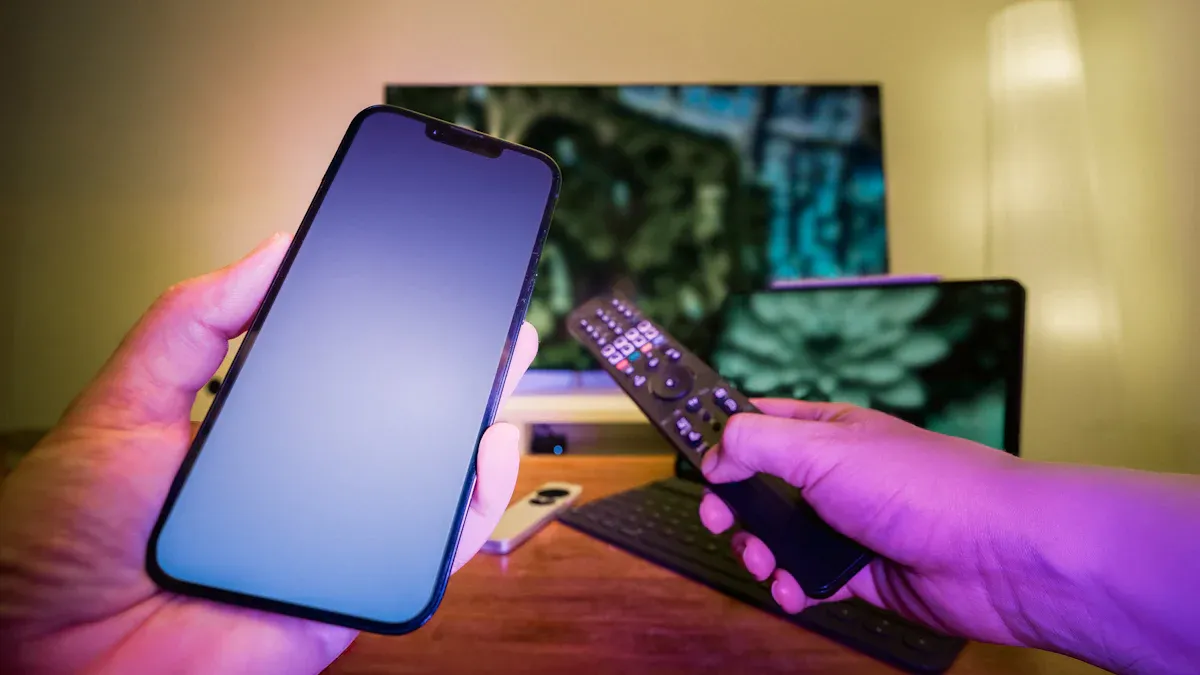
Connecting your vseebox to your TV is fast and easy. You just plug it in and follow a few steps. Then you can start streaming shows and movies. Many people like vseebox because it is simple to set up. It is also a good deal and easy to use. Here are some reasons why people choose vseebox:
Reason | Why It Matters |
|---|---|
Cost | You save money with one purchase |
Convenience | You set it up quickly and easily |
Value for Money | It has strong parts and works smoothly |
Long-Term Use | It lasts for years of fun at home |
You get a device that is easy for anyone to use. It works with most TVs and gives you cool new features in your living room.
Key Takeaways
Setting up your vSeeBox is fast and simple. Plug it in and follow the easy steps to start streaming.
Make sure your TV has an HDMI port. You also need a strong internet connection for the best streaming.
Use the Bluetooth remote to move around easily. It has a backlight for dark rooms and simple buttons.
After you connect, you can watch thousands of channels and movies. You can also pick favorite shows and channels to make it your own.
If you have problems, check your connections and settings first. Most problems are easy to fix so you can keep streaming.
What You Need for vseebox Setup
Before you dive into streaming, let’s make sure you have everything ready for your vseebox setup. You don’t need much, and most of what you need comes right in the box.
vseebox device and accessories
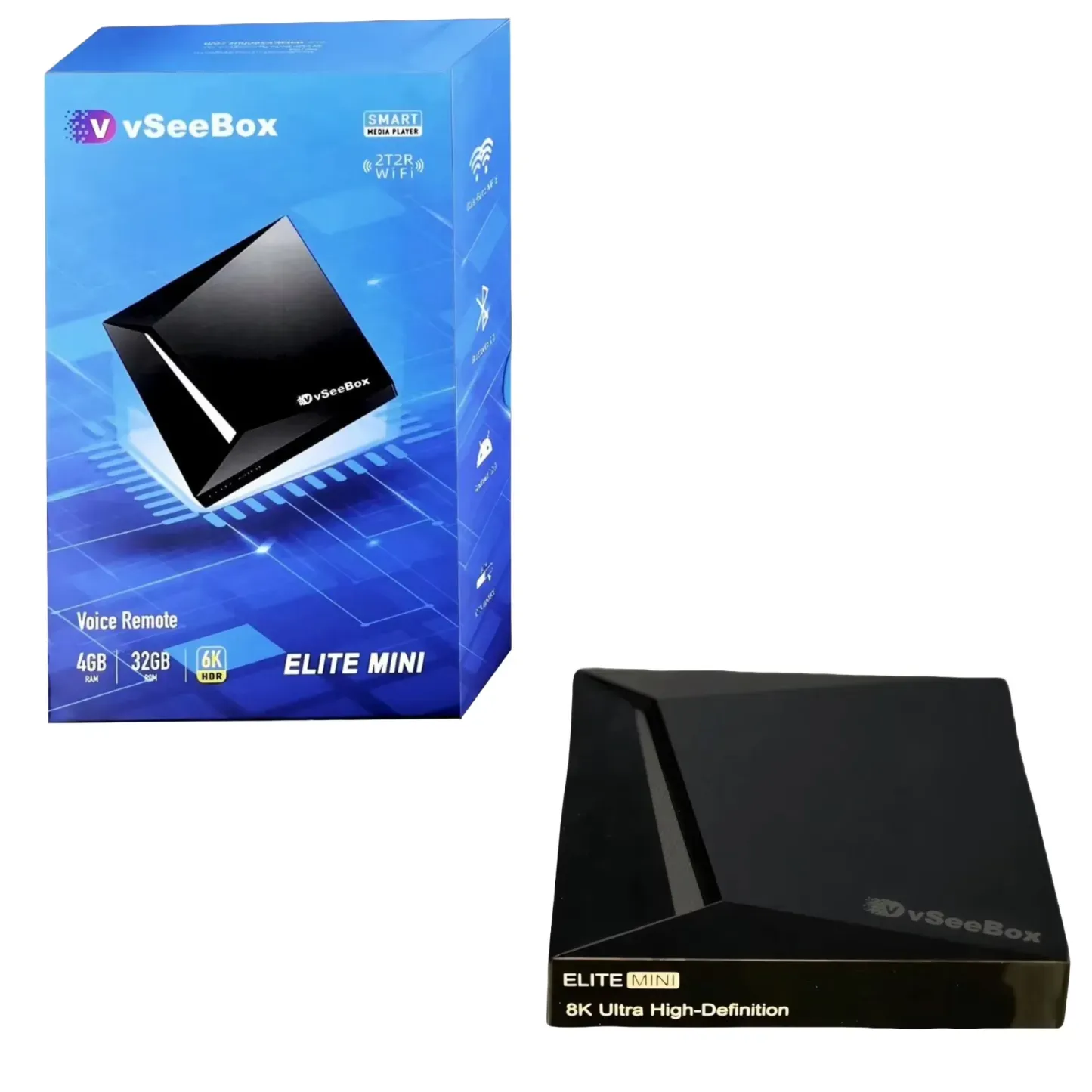
You’ll start with your vseebox device. There are several models to choose from, like the V6 Max, Elite Ultra, V5 Pro, V3 Plus, and Elite Mini. Each one works great with modern TVs and supports high-quality streaming. Here’s what you’ll usually find in the box:
vseebox device (choose your model)
HDMI cable
Power adapter
Remote control (often with backlight for easy use at night)
User manual
Tip: Most vseebox products include all the main accessories, so you won’t need to buy extra cables or remotes.
TV and HDMI port
You’ll need a TV with an available HDMI port. Most modern TVs have at least one. The vseebox connects directly to this port, making the process simple and quick.
Mid-range 4K models handle 4K HDR content and support modern codecs.
High-end units offer faster response and even support casual gaming.
Power adapter and remote
Plug the power adapter into a wall outlet and connect it to your vseebox. The remote control makes navigation easy, even in the dark. Here’s a quick look at what makes the remote special:
Feature | Description |
|---|---|
Backlight | Lets you see buttons in low light |
Design | Sleek and comfortable to hold |
Usability | Simple controls for day or night use |
Internet connection options
To stream smoothly, you’ll need an internet connection. You can use Wi-Fi or Ethernet. For the best experience, aim for at least 15 Mbps speed. Ethernet gives you a more stable and faster connection, but Wi-Fi works well too.
Connection Type | Speed | Stability |
|---|---|---|
Dual-band, good for most | Can be less stable sometimes | |
Ethernet | Consistent, high speeds | Very stable, less interference |
Note: If you want the smoothest streaming, Ethernet is your best bet.
Once you have these items ready, you’re all set to start your vseebox setup and enjoy your favorite shows and movies.
vseebox Setup Steps
Setting up your vseebox is simple. You can do it in just a few minutes, even if you have never tried a streaming device before. Let’s walk through each step together so you can start enjoying your favorite shows right away.
Unbox and check contents
First, open your vseebox package. Take out everything and place it on a table. You want to make sure you have all the parts before you start the installation. Here’s what you should find:
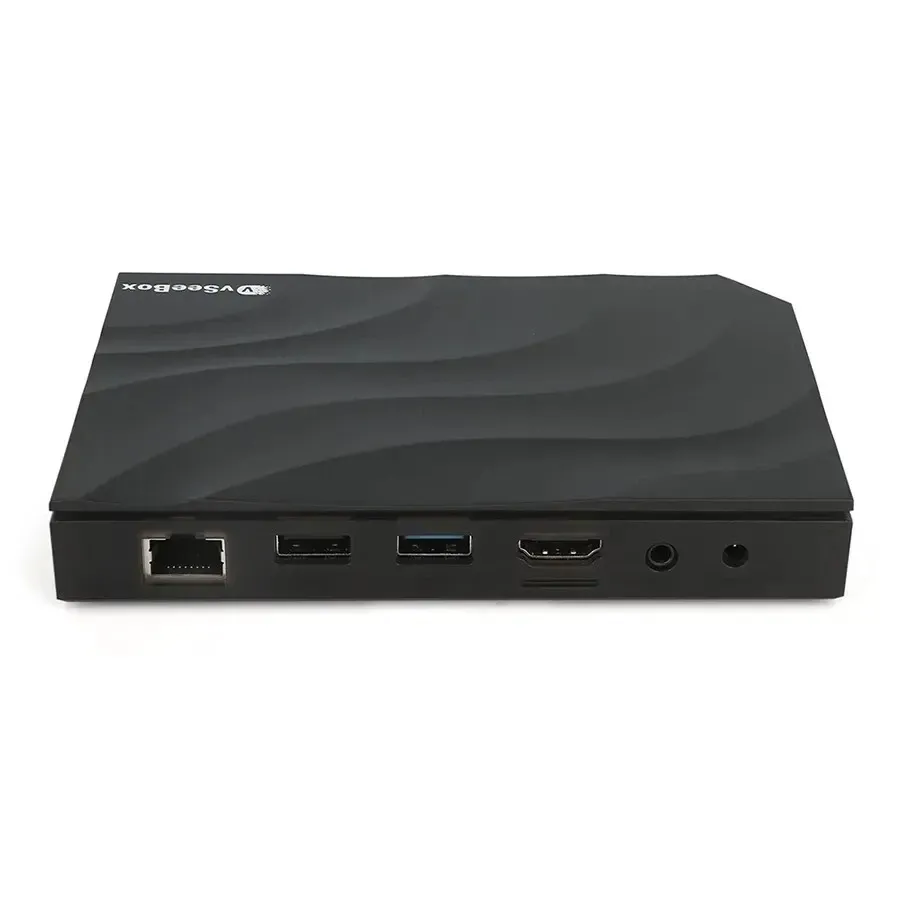
Your vseebox device (for example, vseebox v3 plus or another model)
Bluetooth remote control
HDMI cable
Power adapter
User manual
(Some models) Wi-Fi antenna
Tip: If you have a Bluetooth remote, add two AAA batteries before you continue.
Check the user manual for your model. If you notice anything missing, contact customer support before you begin.
Connect vseebox to TV
Now, let’s get your vseebox connected to your TV. This part is quick and easy:
Take the HDMI cable from the box.
Plug one end into the HDMI port on your vseebox.
Plug the other end into an open HDMI port on your TV.
If your model comes with a Wi-Fi antenna, insert it into the back of the device now.
Note: Make sure your TV is turned off while you connect the cables. This helps protect your devices.
Power on and select input
You’re almost ready to start the basic setup. Here’s what to do next:
Plug the power adapter into your vseebox.
Connect the adapter to a wall outlet.
Turn on your TV.
Use your TV remote to select the HDMI input where you connected your vseebox.
You should see the vseebox welcome screen. If you see a blank screen, double-check your HDMI connection and make sure you selected the right input.
On-screen setup process
Once you see the welcome screen, follow these steps to finish your setup:
Pair your Bluetooth remote if needed. Some models will ask you to press certain buttons to connect.
Choose your language and region.
Connect to your home Wi-Fi network or plug in an Ethernet cable for a wired connection.
Enter your Wi-Fi password using the remote or on-screen keyboard.
Wait for the vseebox to check for updates. It may install the latest software automatically.
Set up your remote to control your TV’s volume and power (if your model supports this).
Explore the main menu. You can now access streaming apps, live TV, and more.
If you get stuck during installation, check the user manual or visit the official vseebox website for video tutorials and support articles. The help center has guides for every step of the process.
You’ve finished the basic setup! Your vseebox is now ready for streaming. Enjoy exploring all the features and channels your device offers.
Internet and Streaming Services
Getting your vseebox online is the key to unlocking all the fun. Once you connect to wifi or plug in an Ethernet cable, you can start exploring thousands of channels, movies, and shows.
Connect to Wi-Fi or Ethernet
You have two ways to get your vseebox online. If your TV is close to your router, use an Ethernet cable for the most stable connection. If not, you can connect to wifi right from your living room. Just follow the on-screen steps:
Go to the Settings menu.
Choose Network.
Pick your home Wi-Fi network from the list.
Enter your password and wait for the checkmark.
Tip: Ethernet gives you the fastest and most reliable connection, but Wi-Fi works great for most homes.
Log in to streaming apps
Your vseebox comes ready with popular apps and services. You get access to an IPTV service with over 4,000 live channels. You also find Heat Live, Heat VOD, and (on some models) Heat VOD Ultra. These apps let you watch more than 1,600 TV channels and a huge library of 80,000+ movies and shows—no extra fees needed.
To start watching:
Open the app you want.
Enter your account details if needed.
Browse the menus and pick what you want to watch.
You can always add more official streaming apps from the app store if you want even more choices.
Set favorites and explore features
Make your vseebox your own by setting favorite channels and shows. Most apps let you mark favorites with a star or heart icon. This way, you can find your top picks fast.
Here are some cool features you can try:
Feature | What It Does |
|---|---|
Picture-in-Picture | Watch two things at once on your screen |
Voice Remote | Search for shows or control your TV by voice |
High-Resolution Video | Enjoy 8K or 6K video with bright colors |
Bluetooth 5.0 | Connect headphones or speakers easily |
You can use the voice remote to search for movies, change channels, or even adjust the volume. If you have the V3 Plus, you get 10-bit HDR and smooth 8K streaming. Every vseebox model gives you a user-friendly experience with lots of ways to enjoy your favorite entertainment.
Troubleshooting and Support
Even with a smooth vseebox setup, you might run into a few bumps. Don’t worry! Most problems have quick fixes, and you can get back to streaming in no time.
No signal or blank screen
If your TV shows a blank screen or says “No Signal,” try these steps:
Double-check the HDMI cable. Make sure it’s plugged in tightly on both ends.
Switch your TV to the correct HDMI input.
Unplug your vseebox and plug it back in.
Restart your TV.
If you still see nothing, try a different HDMI port or cable.
Tip: Sometimes, a simple reboot solves the problem. Just unplug everything for 30 seconds, then reconnect.
Internet connection issues
Streaming needs a strong internet connection. If your vseebox won’t connect or buffers a lot, follow these steps:
Check if your network says “Connected” in the settings.
Move your vseebox closer to your WiFi router.
Make sure your WiFi signal is strong. If not, use an Ethernet cable for a stable link.
Open an app like YouTube to test your connection.
Use the “Fast” app to check your speed. You want at least 8 Mbps for smooth streaming.
Reboot your router and modem if things are slow.
Try disconnecting other devices from WiFi to reduce overcrowding.
Switch your IP setting to “DHCP” if needed.
Note: If you use a VPN, turn it off or switch servers to see if that helps.
Remote or accessory problems
If your remote isn’t working, here’s what you can do:
Put in fresh batteries.
Make sure you paired the remote during setup.
Move closer to the device and remove anything blocking the signal.
For Bluetooth remotes, try re-pairing by following the on-screen instructions.
If an accessory like a keyboard or speaker won’t connect, check if Bluetooth is turned on and try pairing again.
Where to get help
If you still need help, vseebox offers friendly support. You can reach out by WhatsApp or email. Here’s how:
Type | Details |
|---|---|
(+852) 54436463 | |
[email protected] |
You’ll find more guides and video tutorials on the official vseebox website: https://vseebox-shop.com
You’re never alone with your streaming device. Help is just a message away!
You can set up your vseebox fast. It only takes a few minutes. You can start streaming shows right away. There are cool features you can use. You get 8K picture quality on your TV. The Bluetooth remote feels comfy in your hand. Streaming is quick and does not slow down. Using real products and official apps is best. This gives you a better experience every time. Look at the table below to see what you get:
Benefit | Description |
|---|---|
Advanced Streaming Capabilities | Watch in 8K with great sound and picture. |
Exclusive Content Access | Get special channels and live events. |
Superior Hardware Design | Enjoy smooth streaming with less waiting. |
Enhanced Performance | Use a fast, simple menu with more privacy. |
User-Friendly Design | Try a remote that is easy for everyone. |
If you want more tips or need help, visit the vseebox website. You can find guides and support there.
FAQ
Can I use vseebox with any TV?
You can use vseebox with any TV that has an HDMI port. Most modern TVs work great. Just plug it in and follow the setup steps. If your TV is older, check for an HDMI port first.
How do I update my vseebox?
Your vseebox checks for updates automatically. When a new update is ready, you see a message on your screen. Just follow the prompts. You do not need to do anything special.
Can I install more apps on my vseebox?
Yes! You can add more official streaming apps from the built-in app store. Just open the app store, search for your favorite app, and click install. It only takes a few taps.
What should I do if my remote won’t pair?
Try this: Hold the remote close to your vseebox. Press and hold the pairing button until the light blinks. Follow the on-screen instructions. If it still does not work, replace the batteries and try again.
See Also
A Guide to Setting Up Your Vseebox V5 Pro
Steps to Connect Your vSeeBox Remote to TV 2026
vSeeBox Simplifies Streaming for All Users Everywhere